Chat & Conversation Features
iPassion AI Portal provides a full-featured chat interface powered by Open WebUI, designed to support everything from simple Q&A to complex multi-model research workflows. This page covers all chat and conversation capabilities available to users.
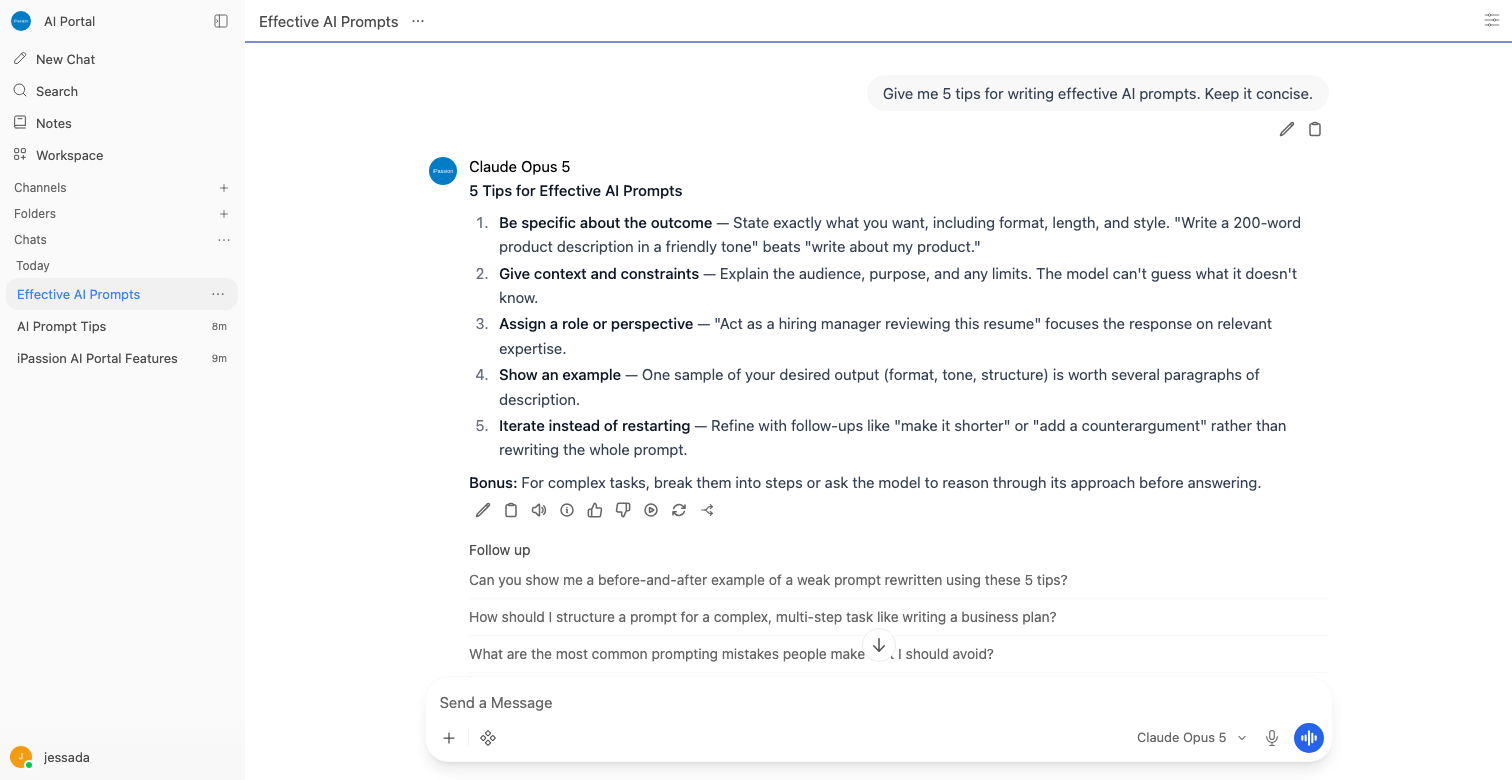
Chat Interface Overview
The iPassion AI Portal chat interface is clean and purpose-built for productive AI conversations. Key elements include:
- Model selector — Choose from any available model at the top of the conversation.
- Message input — A resizable text area at the bottom of the screen for composing messages.
- Conversation panel — The scrollable main area where messages are displayed with full Markdown rendering.
- Sidebar — Lists all past conversations, organized by folders, tags, and recency, with a search bar.
- Settings access — Accessible from the user menu at the bottom-left of the sidebar.
New conversations start automatically when you open a fresh chat. Each conversation is saved and accessible from the sidebar for as long as you need it.
Multi-Model Conversations
iPassion AI Portal supports running multiple AI models side by side in the same conversation, making it easy to compare outputs, validate answers, or use specialized models for different parts of a task.
Selecting Multiple Models
- Click the model selector at the top of the chat.
- Select a primary model from the dropdown list.
- Click the "+" button next to the model selector to add additional models.
- Repeat to add as many models as needed.
Side-by-Side Comparison
When multiple models are active, each response is displayed in a separate column so you can read and compare outputs directly. This is particularly useful for:
- Evaluating response quality across models.
- Getting a second opinion on factual questions.
- Running the same prompt through a general-purpose model and a specialized model simultaneously.
You can collapse or expand individual model columns as needed. Each model's column is labeled with the model name for clarity.
File and Image Uploads
iPassion AI Portal supports uploading files and images directly into the chat for AI analysis. This allows you to ask questions about documents, extract data, summarize content, or analyze visual information.
Supported Input Types
- Images — JPG, PNG, GIF, WebP, and other common formats (requires a vision-capable model).
- Documents — PDF, DOCX, TXT, CSV, and other text-based file formats.
- Code files — Source files in any language for review or debugging.
How to Upload
- Click the paperclip icon in the message input area, or drag and drop files directly into the chat window.
- The file or image preview appears above the message input.
- Type your question or instruction and send.
The AI will process the uploaded content as part of your message. For multi-page documents, the full text is extracted and passed to the model. For images, the visual content is analyzed directly when using a vision-capable model.
Web Search with Source Citations
iPassion AI Portal can perform live web searches and include cited sources in its responses, keeping answers grounded in current, verifiable information.
Enabling Web Search
- Click the globe icon in the message toolbar to toggle web search on for your current message.
- When web search is active, the icon is highlighted.
How It Works
- Your query is sent to the configured web search engine.
- Relevant results are retrieved and provided to the AI as context.
- The model generates a response based on both its training knowledge and the retrieved content.
- Source citations are displayed below or inline within the response, linking to the original pages.
Web search is useful for questions about recent events, current data, prices, news, or any topic where up-to-date information matters.
Code Execution (Python)
iPassion AI Portal includes a built-in Python code execution environment that runs directly in your browser. You can ask the AI to write code, and then execute it without leaving the chat.
Running Code
- When the AI produces a Python code block, a Run button appears above the code.
- Click Run to execute the code in the browser-based sandbox.
- Output (text, numbers, errors, or charts) is displayed directly below the code block.
Capabilities
- Execute data analysis scripts.
- Generate and display charts and visualizations.
- Test logic and algorithms in real time.
- Iterate on code with the AI's help based on execution results.
The execution environment is isolated and sandboxed for safety. No installation or external tools are required.
Message Queue (Async Processing)
iPassion AI Portal supports asynchronous message processing, meaning you can submit messages and continue working without waiting for each response to complete before sending the next.
- Messages sent while a response is generating are queued and processed in order.
- The queue indicator shows how many messages are pending.
- This is particularly useful for batch-style workflows where you want to chain multiple instructions quickly.
AI Memory (Cross-Conversation Retention)
iPassion AI Portal includes an AI Memory feature that allows the model to remember information about you across separate conversations. This eliminates the need to re-explain context every time you start a new chat.
What Memory Stores
- Your name, role, or professional background (when shared).
- Preferences you have expressed (e.g., preferred response format, language, verbosity).
- Key facts you have told the AI in previous conversations.
How It Works
- During a conversation, the AI identifies information worth remembering.
- That information is saved as a memory entry.
- In future conversations, relevant memories are automatically included as context.
Managing Memories
- Go to Settings > Personalization > Memory to view, edit, or delete stored memories.
- You can manually add memories or clear all memories at any time.
- Memory is personal to your account and is not shared with other users.
Conversation Organization
iPassion AI Portal provides a comprehensive set of tools for organizing and retrieving your conversations.
Folders
- Create folders from the sidebar to group related conversations.
- Drag and drop conversations into folders.
- Nest folders for hierarchical organization.
Tags
- Add one or more tags to any conversation using the conversation options menu (three-dot icon in the sidebar).
- Filter conversations by tag from the sidebar.
- Tags are free-form text, so you can use any labeling system that works for you.
Pinning
- Pin important conversations to the top of the sidebar so they are always easy to find.
- Right-click a conversation or use the options menu and select Pin.
Search
- Use the search bar at the top of the sidebar to find conversations by keyword.
- Search matches against conversation titles and message content.
Archive
- Archive conversations you no longer need in the active list but want to keep for reference.
- Access archived conversations from Settings > Archived Chats.
- Archiving keeps conversations out of the main sidebar without deleting them.
Rename and Delete
- Rename any conversation by clicking its title in the sidebar or using the options menu.
- Delete conversations individually or in bulk from the sidebar options.
Keyboard Shortcuts
iPassion AI Portal supports keyboard shortcuts to keep your workflow fast and efficient.
| Action | Shortcut |
|---|---|
| Send message | Enter |
| Insert a newline (multi-line input) | Shift + Enter |
| Open new chat | Ctrl + Shift + O (Windows/Linux) / Cmd + Shift + O (Mac) |
| Focus message input | Shift + Esc |
| Copy last code block | Available via message actions |
Tip: Use
Shift + Enterto write multi-paragraph messages or include structured lists before sending.
Message Actions
Every message in iPassion AI Portal has a set of actions available on hover or tap. These allow you to interact with individual messages without affecting the rest of the conversation.
Available Actions
- Copy — Copy the full text of a message to your clipboard.
- Regenerate — Ask the AI to produce a new response to the same prompt. Useful if the first response was not what you needed.
- Edit — Edit your own message text and resubmit it. The conversation branches from the edited point.
- Rate (Thumbs Up / Thumbs Down) — Provide feedback on a response. Ratings help improve the system over time and are visible to administrators in feedback reports.
- Continue Generation — If the AI stopped mid-response (e.g., due to token limits), click this to resume generation from where it left off.
Markdown Rendering
iPassion AI Portal renders AI responses with full Markdown support, making complex information easy to read.
Supported Formatting
- Headings — H1 through H6 with proper hierarchy.
- Bold, italic, strikethrough — Standard inline formatting.
- Ordered and unordered lists — With support for nested lists.
- Tables — Rendered as formatted HTML tables.
- Blockquotes — Indented and styled for clarity.
- Horizontal rules — Visual section dividers.
Code Highlighting
Code blocks are rendered with syntax highlighting for all major programming languages, including Python, JavaScript, SQL, Bash, JSON, and more. The language is auto-detected or specified by the model.
LaTeX Math Rendering
Mathematical expressions written in LaTeX are rendered inline and as block equations using a built-in math rendering engine.
- Inline math: wrapped in
$...$ - Block math: wrapped in
$$...$$
This is especially useful for scientific, engineering, and academic work.
Mid-Conversation Model Switching with @model
You can switch to a different AI model at any point within a conversation using the @model mention syntax.
Usage: Type @ followed by the model name in your message.
Example:
This directs that specific message to the mentioned model. You can use this to bring in a specialized model for a particular step without changing the default model for the whole conversation.
Referencing Knowledge Bases with #
iPassion AI Portal supports Knowledge Bases — curated collections of documents that the AI can search and reference. You can pull a specific Knowledge Base into any message using the # syntax.
Usage: Type # in the message input to see a list of available Knowledge Bases. Select one to attach it to your message.
Example:
The AI will search the referenced Knowledge Base and ground its response in that content, with citations to the relevant sections.
Prompt Library Slash Commands with /
iPassion AI Portal includes a Prompt Library where reusable prompt templates are stored. Access them instantly during any conversation using the / command.
Usage: Type / in the message input to open the prompt command menu. Type additional characters to filter by name.
Example:
Selecting a prompt template inserts the full prompt text into your message input, where you can customize it before sending. Slash commands save time on frequently used prompts and ensure consistency across your team.
Administrators can manage the Prompt Library from Workspace > Prompts, where prompts can be created, edited, and assigned to specific user groups.
Reference
For more technical details, see the Open WebUI — Chat & Conversations documentation.